You went too fast and crashed! Be more careful next time!
You ran out of time! Try to find a way to get around the track faster!
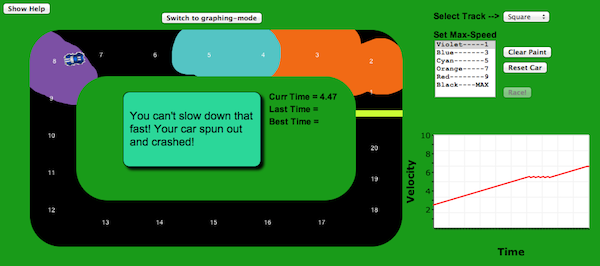
You can't slow down that fast! Your car spun out and crashed!
You did it! Try to get a faster time or try a different track!
Welcome to FormulaT Racing!
In the painting mode:
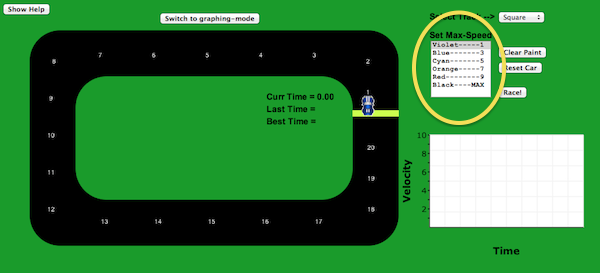
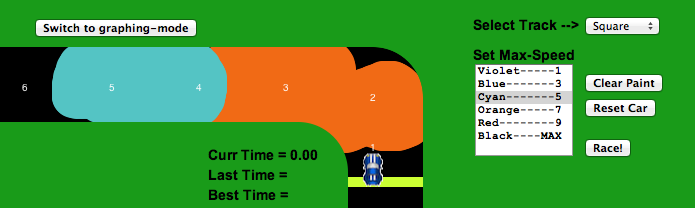
In this mode you'll be painting the track various colors that each represent a different maximum velocity. After selecting the track you want to race on, In the selection box to the right, select the paint color you'd like to use. The number next to the color name indicates the maximum velocity the car will reach while driving over that color.
Once you've selected the color you'd like to use, simply click or touch the track to paint! Keep in mind that if your car is below the velocity indicated by the color, it will accelerate steadily until it reaches its maximum speed. While the car will turn automatically, its ability to turn is affected by its velocity. When you've finished painting, press the "Race" button!
The FormulaT Racing car can't deccelerate too quickly! If the color has a maximum speed more than three less than your current speed you'll crash!
In the graphing mode:
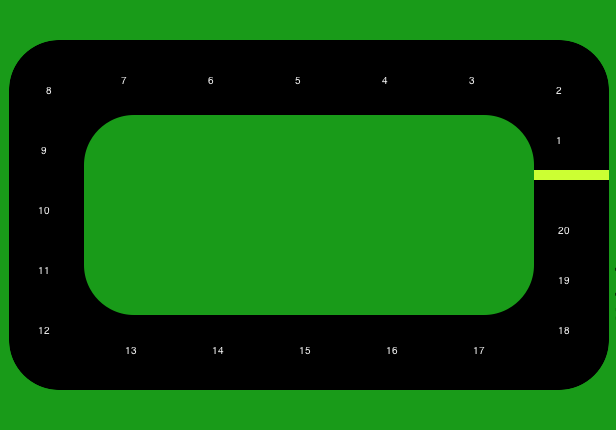
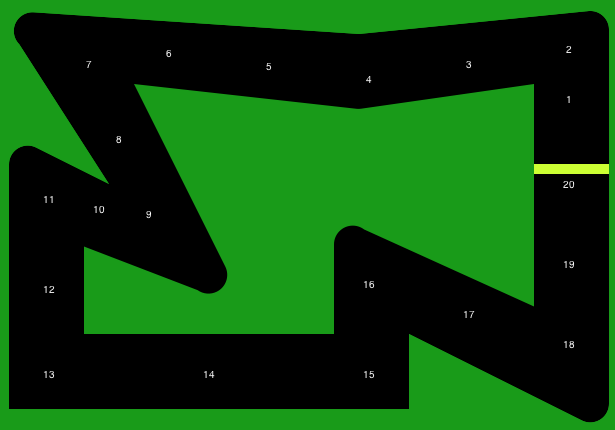
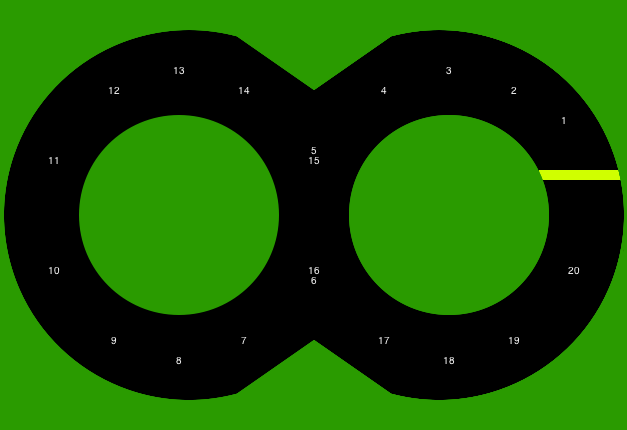
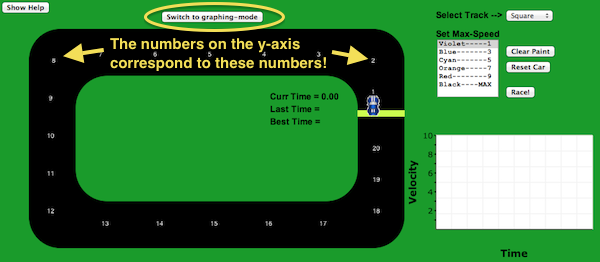
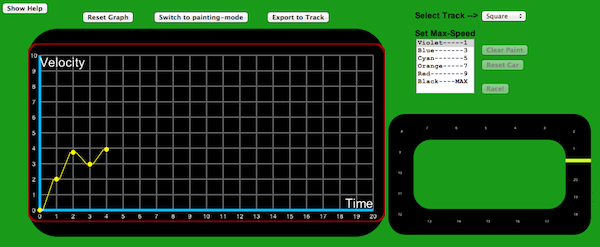
In this mode you'll be creating a graph that the car will use to drive around the track. To get started, switch to "graphing mode." Notice that the numbers on the y-axis represent velocity and the number on the x-axis correspond to the 20 markers on each track.
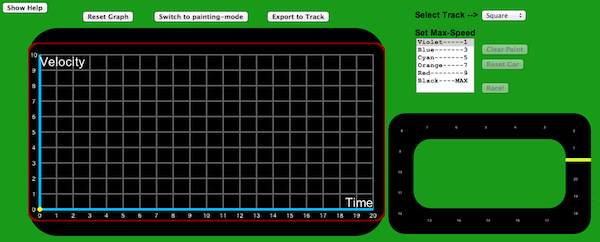
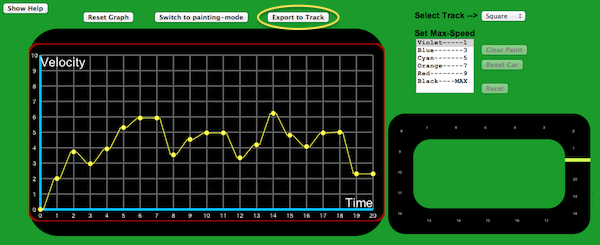
Click or tap the graph to create a point. If you're on a mobile device, tilt the device forward or backward to accelerate the point up and down the graph. Once you're happy with the point's position, tap again to freeze the point in place. If you're using a mouse, click and drag to create and position new points.
Once you've added all 20 points, you can edit individual points by clicking or tapping on them. When you're done, press the "Export to Track" button to return to the track. Now, when you press the "Race" button the car will drive around the track acording to the graph you've constructed! If you need to make any changes, just press the "Return to Graph" button.